Snippets, macros and tags
Text you reuse, a set of actions you apply in one go, and a label that says what a conversation is about — and the key that opens each one.
Practice inbox
Alia6Active3Snoozed0Done
Click here, then use your keyboard
Click the window, then press the keys. It reacts the way the app does.
Step 1 of 11
Open the selected conversation
Snippets and macros are different things
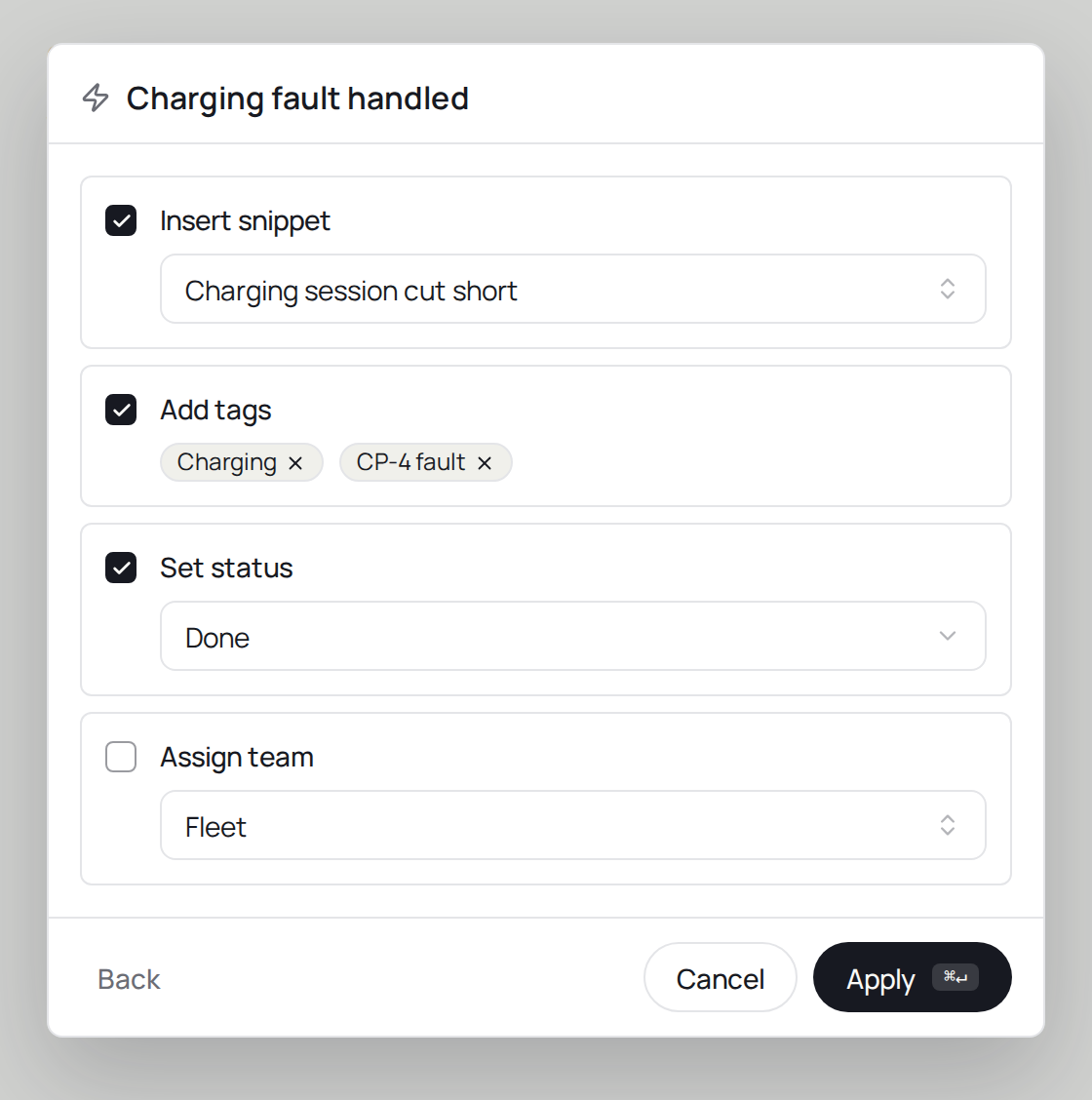
A snippet stays pure text: it lands in the reply box as a draft, with variables like {{contact.name}}replaced by real values, and nothing else happens. A macro bundles actions — assign a team, add tags, set the status — and it can insert a snippet as one of them, but it never sends the reply.
The product says
“Add a comment... (@ to mention, !! for snippets, paste an image)”
Do it now
Create a signature snippet and use it with !! in your next reply.