One key for every view you have saved
Press V in the conversation list: the filters your team saves are now a keyboard list, and every view carries its own key.
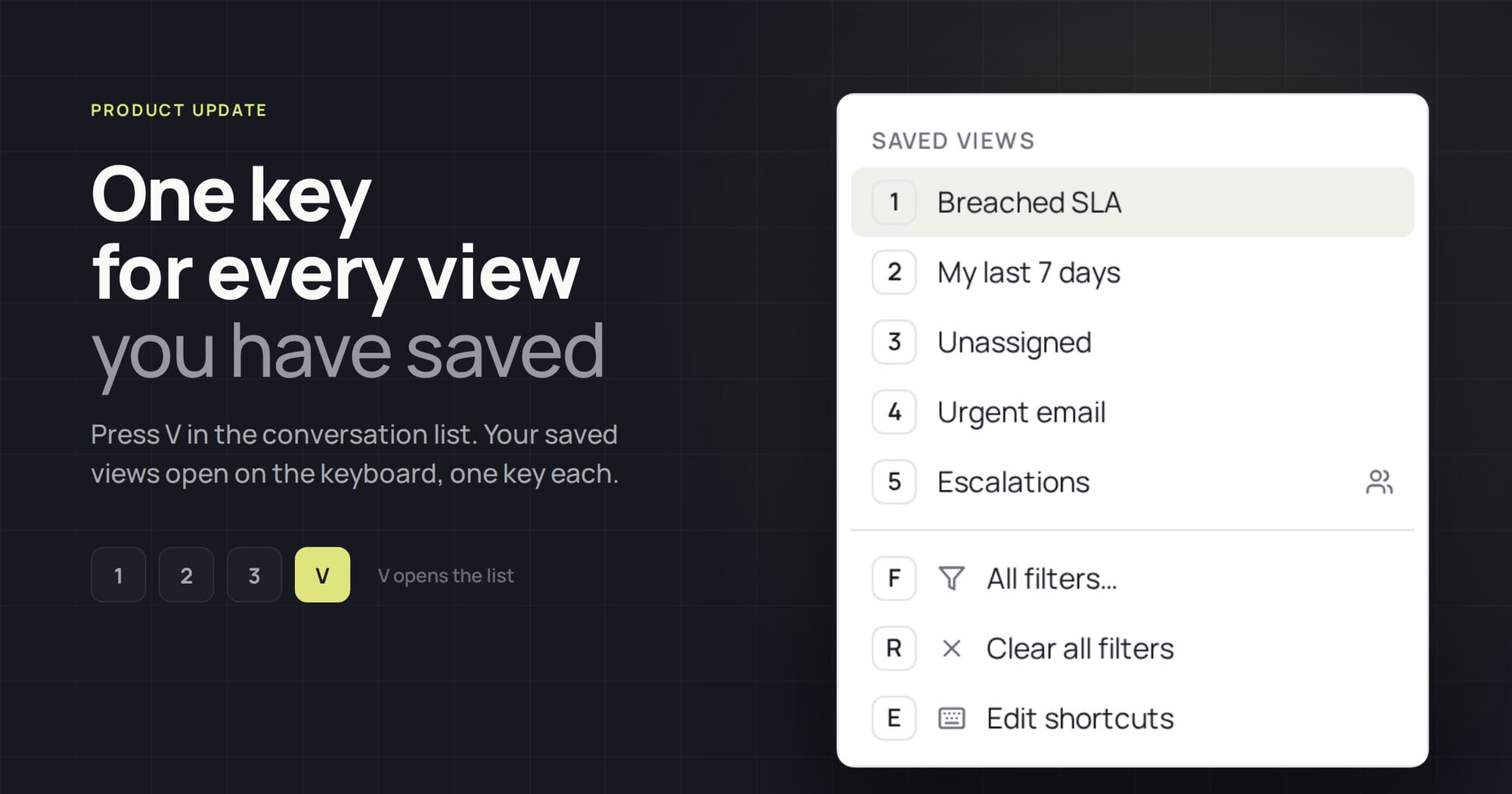
Press V in the conversation list. The filters your team saves are now a keyboard list, and every view carries its own key.
An agent rarely works one filter at a time. Unassigned, then their own queue, then the escalations they promised to watch — over and over, all day. Every one of those switches used to cost the same thing: leave the keyboard, open the filter panel, find the saved filter, apply it, come back.
That round trip is gone. Saved filters are now saved views, and they answer to a key.
How it works
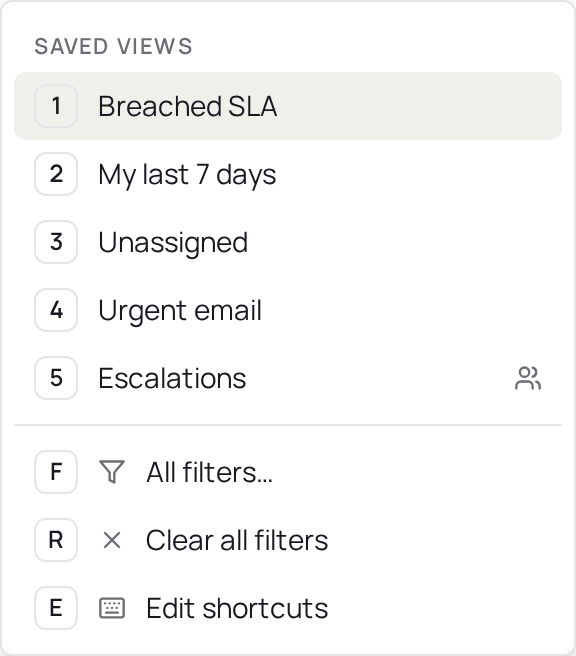
- V opens the list. Press it in the conversation list, with no conversation open. The filter panel takes the same key, so a half-built filter is never a dead end.
- One key applies a view. Keys 1 to 0 are handed out in the order your views arrive. Arrow keys and Enter do the same thing when you would rather read the list first.
- Filters and sort travel together. A view carries how the list is sorted, not only what it holds.
- Two more keys in the list. F opens all filters. R clears whatever you have on now.
Your keys, not ours
Press E and the list becomes editable: Enter on a view, then the key you want it on. Two views swap keys instead of one quietly losing its own, Backspace clears a key, and Esc finishes.
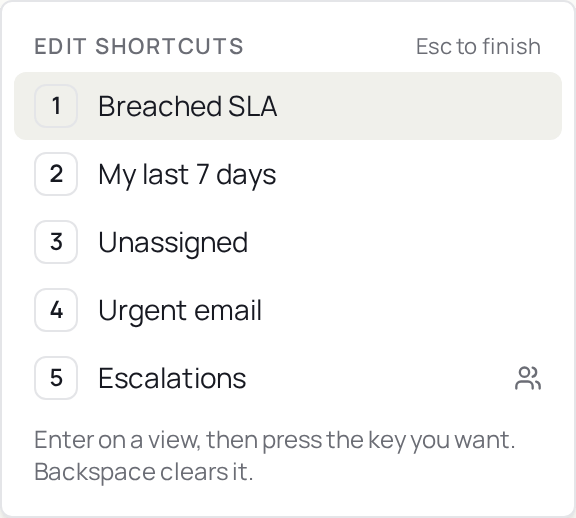
The keys belong to the agent, not to the view. A preset shared across the team can sit on 1 for the person who lives in it and on 7 for the person who checks it twice a day. Nobody's muscle memory is decided by a colleague.
Where views come from
Build the filter you want in the filter panel and save it. It joins the list on the next free key, ready to use immediately. Views shared with your team arrive the same way and are marked as shared, so it is clear which ones the whole team sees.
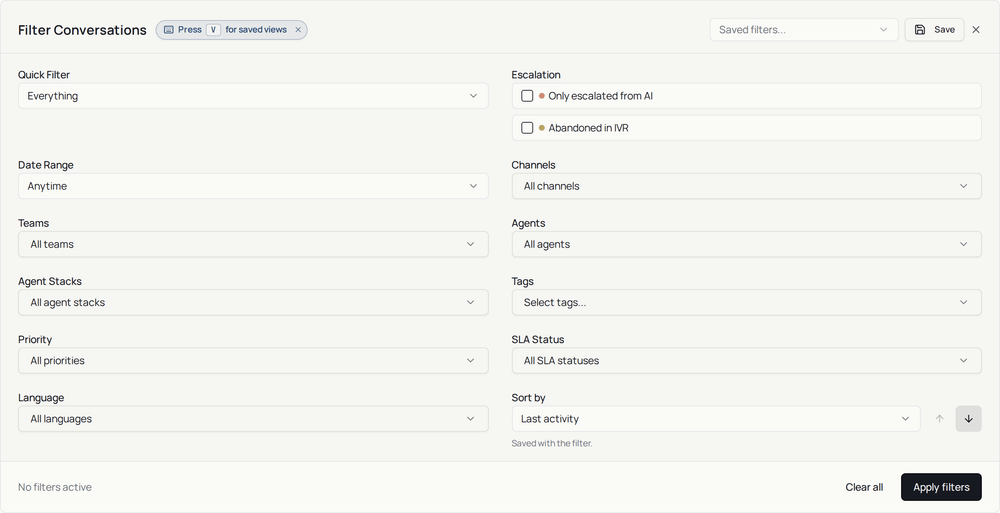
Live now. Nothing to switch on, and no setup. Open the conversation list, press V, and the views you have already saved are waiting on their keys.